A common practice in the world of SharePoint is to create sub site templates. A site collection administrator will customize a template sub site and then via the Site Settings use the "Save site as template" option to create a new template that can be used for new sub sites. The problem is that this option isn't always available. So why not?
The answer lies in the activation of Publishing Features on the site collection. If at any point in time during the entire life cycle of the site, you had turned Publishing on for the site collection, this option is removed permanently.
See https://support.microsoft.com/en-us/kb/2492356 for more detail.
Later
C
17 October 2015

21 September 2015
How to convert text to upper or lower case in InfoPath
If you're developing SharePoint forms with extended functionality, then you've most likely already been exposed to InfoPath. You know, that thing that Microsoft said was dead years ago? :-)
Unfortunately, InfoPath doesn't have the maturity of something like Visual Studio and C# when it comes to text handling. It would have been great if we could have had access to a .ToUpper() or .ToLower() method when dealing with text, but alas, we do not.
To that end, we have to use a workaround leveraging the translate() method. In order to generate the equivalent of .ToUpper() which converts all text to uppercase, you'll need to use this:
translate(., "abcdefghijklmnopqrstuvwxyz", "ABCDEFGHIJKLMNOPQRSTUVWXYZ")
Vice versa, to get a .ToLower() equivalent which converts all the text to lowercase, you'll need:
translate(., "ABCDEFGHIJKLMNOPQRSTUVWXYZ", "abcdefghijklmnopqrstuvwxyz")
Enjoy
C
17 August 2015
How do I - Fix the problem where SharePoint Designer 2013 crashes upon opening a site?

In my case, this was a problem back in the previous version cycle, when I upgraded from SharePoint 2007 to 2010. My clients were migrating from 2007 to 2010 thus having content in both formats.
Of course, this problem didn't go away or get fixed, but instead it persists to this day with the version upgrade from SharePoint 2010 to 2013 and I'll be you dollars to donuts we'll see this problem going from 2013 to 2016 as well.
Synopsis
A large company with multiple terabytes of content decides to upgrade from SharePoint 2010 to 2013. Given the large amount of data, it's a phased migration over time. As a result, some sites are in 2010 and some are in 2013. End user support staff will need to be able to support both 2010 and 2013 sites. When these users install SharePoint Designer 2013 and then try and open a SharePoint 2013 site with SPD 2013, without uninstalling SPD 2010 i.e. running 2010 and 2013 parallel, then SPD could crash consistently. Oh, and forget about going back to 2010 also. It will also now be crashing upon opening a site. I consider this to be a product bug.
I really wish concurrent version testing would have higher priority with software vendors.
Solution
To solve this little conundrum, we're going to have to hack the system... time to fire up good old REGEDIT. Follow these steps to clear up the problem.
- Click the Windows start button.
- Type "regedit" and press enter.
- In the registry editor, locate the following key:
HKEY_CURRENT_USER\Software\Microsoft\Office\14.0\Common\Open Find\Microsoft SharePoint Designer\Settings\Open Site - Delete the "ClientGUID" key located here.
- Locate the next key:
HKEY_CURRENT_USER\Software\Microsoft\Office\15.0\Common\Open Find\Microsoft SharePoint Designer\Settings\Open Site - Delete the "ClientGUID" key here.
Now restart SharePoint Designer and your sites should open as expected.
NOTE: Your most recently used list will now show both 2010 and 2013 sites. It's recommended to keep using SPD 2010 with SharePoint 2010 sites and 2013 with 2013 sites.
Hopefully this post saves someone some time and frustration.
Later
C
20 July 2015
Powershell Quick Tip - How do I get the Powershell Version?
I often get asked how to determine the version of Powershell running in an environment. I wish it was a simple as just typing "ver", but alas, it's slightly more complex than that. You'll need this statement:
C
$PSVersionTable.PSVersion
PS C:\> $PSVersionTable.PSVersion

Major  Minor  Build  Revision
-----  -----  -----  --------
4      0      -1     -1
C
15 June 2015
How do I - Select data from a table using TSQL while not returning any duplicates?
When working with large lists of data that are not guaranteed to be unique, you often have to filter out duplicate values. To do this in SQL Server using TSQL, you can leverage the GROUP BY/HAVING combination of statements thus:
Enjoy
C
10 January 2015
SharePoint Audit Log reporting
SharePoint has some built in Audit Log reporting that can be leveraged for rudimentary auditing purposes. In order to these reports to become available, you will need to configure the Audit Settings on a per site collection basis from the /_layouts/15/settings.aspx page.
To view the reports, simply return to the site settings page and click "Audit log reports" (/_layouts/15/Reporting.aspx?Category=Auditing) under the Site Collection Administration section.
From this page, you will have several report options.
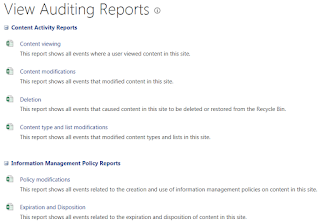
Play around with these reports and see what's useful to you.
Happy SharePointing!
Later
C
- From your site collection root, click the Settings gear in the top left of the page.
- On the dropdown menu, click "Site Settings".

- Under the "Site Collection Administration" section, click the "Site collection audit settings" (/_layouts/15/AuditSettings.aspx) link.

- On the "Configure Audit Settings" page, you can configure a multitude of options such as audit log trimming and the different events to audit.

- Once you've configured your desired settings, click the "OK" button to close the page and enforce the settings.


To view the reports, simply return to the site settings page and click "Audit log reports" (/_layouts/15/Reporting.aspx?Category=Auditing) under the Site Collection Administration section.
From this page, you will have several report options.

Play around with these reports and see what's useful to you.
Happy SharePointing!
Later
C
16 December 2014
How do I - Fix SharePoint ULS Logs not being written?
From time to time, you will run into a situation where you're looking for ULS logs in their regular place i.e. %CommonProgramFiles%\Microsoft Shared\Web Server Extensions\15\LOGS\ but there aren't any log files being written. Most of the time, the problem is simply that an admin might have changed the logging location.
Later
C
- Ensure you're checking the correct logging location.
- Navigate to Central Admin >>> Monitoring >>> Configure Diagnostic Logging
- Check the Path value. You can copy the value and paste it into your Windows Explorer address bar for quick access to the logging location.
- Open the Service console from the server where the logs aren't being written.
- Scroll down and check that the "SharePoint Tracing Service" is running.
- If the service is running, you may want to restart it for good measure.
- Most likely it's NOT running though. If it's not, start the service.
- If the service does not use Local System for the account, but instead uses a domain account, it's likely that the password might have changed recently. Obtain the new password and reset the credentials for the service and then restart the service.
- Navigate to Central Admin >>> Monitoring >>> Configure Diagnostic Logging
- Check the Path value. Change it to a folder that does exist.
- Click OK.
- Navigate back to the "Configure Diagnostic Logging" page.
- Change the Path value back to %CommonProgramFiles%\Microsoft Shared\Web Server Extensions\15\LOGS\ and click OK.
Later
C
Subscribe to:
Posts (Atom)
-
Ever wondered what the new SharePoint Online URLs are all about? Take for example https://cjvandyk.sharepoint.us/:x:/r/sites/Site1... What ...
-
 Have you ever started creating a list view in SharePoint and because you're experimenting, you chose to make it a "Private" vi...
-
The Microsoft Authentication Library (MSAL) is a powerful library designed to simplify the authentication process for applications that conn...
